

Introduction
Have you ever handed your phone to a friend to show them a photo, only to worry they might swipe too far? Or maybe you have banking apps that you want to keep extra safe? Whatever the reason, learning how to hide apps on android is a fantastic way to protect your privacy. It is like having a secret drawer in your desk that only you can open.
The best part is that you don’t always need to be a tech genius to do this. Most modern phones have these features built right in. In this guide, we will walk through the easiest ways to keep your home screen clean and your private life private. We will cover everything from simple settings to special secret folders.
|
Privacy SpecialistExpert in Android security and mobile software optimization with over 5 years of experience helping users secure their personal data. |
Understanding the Basics of App Privacy
When people ask, “how to hide apps on android phone,” they usually want to keep the app installed but invisible. You don’t want to delete your progress or lose your login info. You just want the icon to vanish from the main view.
There is a big difference between hiding and disabling. If you disable an app, it stops working. But if you hide it, the app stays active in the background. You still get notifications, and it still works perfectly when you find it. This is the secret agent approach to phone management!
How to Hide Apps on Android Without Disabling Them
The most common way to keep things running while they are out of sight is using the Hide feature in your home screen settings. This is the answer for anyone wondering how to hide apps on android without disabling them.
On many phones, you simply long-press an empty spot on your screen. A menu will pop up. Look for Home Screen Settings. Inside, you will often find an option that says Hide Apps. Once you pick your apps and hit Done, they will vanish from your app drawer. They are still there, just hiding!
How to Hide Apps on Android Samsung Devices
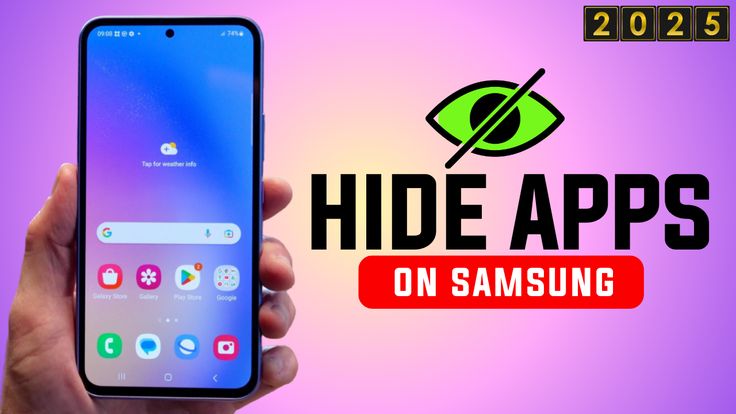
Samsung users have it pretty lucky because their One UI software is built for privacy. If you want to know how to hide apps on android samsung, you have two great choices. The first is the standard Hide Apps tool in the settings.
The second choice is the famous Secure Folder. This is a special, encrypted space. It is like a vault inside your phone. To get inside, you need a separate password or your fingerprint. It is the gold standard for anyone who needs high-level security for work or banking.
Comparative Guide: Android App Hiding Methods
| Method | Best For | Privacy Level | Difficulty |
|---|---|---|---|
| Home Screen Settings | General Clutter | Medium | Very Easy |
| Samsung Secure Folder | Banking/Private Photos | High | Easy |
| Third-Party Launchers | Customization | Medium | Medium |
| Private Space (Android 15) | Deep Privacy | High | Easy |
Using Private Space on the Latest Android 15
If you have a newer phone like a Google Pixel, you might have the Private Space feature. This is a brand-new way of looking at how to hide apps on android. It creates a separate section at the bottom of your app drawer that stays locked.
When you use Private Space, the apps you put inside are completely isolated. Even if someone knows your main phone password, they can’t see these apps without a second, different code. This is perfect for those sensitive apps you don’t want anyone to stumble upon.
The Role of Third-Party Launchers
What if your phone doesn’t have a built-in hiding tool? Don’t worry! You can use a Launcher. This is an app that changes how your home screen looks. Apps like Nova Launcher Prime are very popular for this.
Once you install a new launcher, you get a whole new set of secret options. You can hide apps, rename them, or even change their icons. For example, you could make your banking app look like a boring calculator. It’s a clever trick that keeps prying eyes away!
Accessing Your Hidden Apps
Once you’ve hidden them, how do you get them back? Don’t panic—they aren’t gone forever! On most phones, you can find them by using the search bar in your app drawer. Just type the name, and the app will pop up.
If you used a Secure Folder or Private Space, you will need to navigate to that specific folder and enter your password. If you ever want to make them visible again, just go back into the same settings where you hid them and uncheck the box.
Tips for Better Privacy Management
Hiding an app is just one part of the puzzle. You should also think about your notifications. If an app is hidden but a message pops up on your lock screen, the secret is out!
Go into your notification settings and turn off sensitive content for your hidden apps. This ensures that even if someone sees your screen, they won’t see the text of your private messages. It’s all about layering your security like an onion.
Common Mistakes to Avoid
One big mistake is forgetting your password for secret folders. Since these folders are extra secure, it can be hard to get back in if you lose the code. Always use a password you can remember or save it in a safe password manager.
Another mistake is thinking that hiding an app deletes its data. It doesn’t. If you are low on storage, hiding apps won’t help. You would need to uninstall them to save space. Hiding is only for visual privacy!
Faqs
1. Can I hide apps on android without disabling them?
Yes! Using the Hide Apps feature in your home screen settings keeps the app fully functional but invisible to anyone scrolling through your phone.
2. Does hiding an app stop it from using battery?
No. Since the app is not disabled, it can still run in the background. If it is a battery-heavy app, it will still use power.
3. Will I still get notifications from hidden apps?
Usually, yes. Unless you specifically turn notifications off, you will still see alerts. You should hide notification content for better privacy.
4. How do I find hidden apps on a Samsung phone?
You can search for the app name in the Finder search bar or look inside the Secure Folder if you have it set up.
5. Is there a way to hide apps on android phone for free?
Absolutely. Most Android phones (Samsung, OnePlus, Xiaomi) have this built-in for free in the settings menu.
6. Can someone find my hidden apps if they try hard?
If they know where to look (like the All Apps list in Settings), they might find them. For total security, use a password-protected Secure Folder.
Conclusion
Learning how to hide apps on android is a small step that makes a huge difference in your digital life. Whether you are using a how to hide apps on android samsung method or a third-party launcher, you are taking control of your personal space.
Your phone is a very personal device. It holds your photos, your money, and your conversations. By using these simple tools, you can share your phone with confidence, knowing your private business stays private.
